- “it would be better if everyone behaved well, had a patriotic attitude, and contributed to the progress of the country”
- “technology enables measurement of individual behavior, attitudes, and contributions”
- “therefore, everyone will be better off if we set up a technology-based system of monitoring and control based on rewards and punishments.”
- various surprising uses of back-linking between files
- a script for automatically updating them in-place in a dedicated section each note
- exploring methods of visualizing relations between notes …
- … and ideally using this visualizing for some free-roaming navigation as well.
- sl
- tmatrix
- cowsay
- fortune
- fortune-mod
- figlet
- ansiweather
See for example https://www.aidence.com/blogs/early-lung-cancer-detection-with-ai-a-guide-for-patients/ ↩︎
https://www.theguardian.com/technology/2019/nov/12/google-medical-data-project-nightingale-secret-transfer-us-health-information ↩︎
https://www.dhcs.ca.gov/formsandpubs/laws/hipaa/Pages/1.00WhatisHIPAA.aspx ↩︎
https://www.wsj.com/articles/google-s-secret-project-nightingale-gathers-personal-health-data-on-millions-of-americans-11573496790 ↩︎
https://www.nytimes.com/2019/11/11/business/google-ascension-health-data.html ↩︎
https://www.nationalreview.com/news/google-gathering-health-care-data-on-millions-of-americans-with-secret-project-nightingale/ ↩︎
https://edition.cnn.com/2019/11/12/tech/google-project-nightingale-federal-inquiry/index.html ↩︎
https://www.theguardian.com/technology/2017/may/16/google-deepmind-16m-patient-record-deal-inappropriate-data-guardian-royal-free ↩︎
Nissenbaum, Helen. (2010). Privacy in Context - Technology, Policy, and the Integrity of Social Life. ↩︎
Zuiderveen Borgesius, F. J., Möller, J., Kruikemeier, S., Ó Fathaigh, R., Irion, K., Dobber, T., … de Vreese, C. (2018). Online Political Microtargeting: Promises and Threats for Democracy. Utrecht Law Review, 14(1), 82–96. DOI: http://doi.org/10.18352/ulr.420 ↩︎
https://www.spiegel.de/netzwelt/netzpolitik/donald-trump-und-die-daten-ingenieure-endlich-eine-erklaerung-mit-der-alles-sinn-ergibt-a-1124439.html ↩︎
See page 77 of Chris Jay Hoofnagle, Bart van der Sloot & Frederik Zuiderveen Borgesius (2019) The European Union general data protection regulation: what it is and what it means, Information & Communications Technology Law, 28:1, 65-98, DOI: 10.1080/13600834.2019.1573501 ↩︎
Sharon, T. (2016). The Googlization of health research: From disruptive innovation to disruptive ethics. Personalized Medicine, 13(6), 563-574. DOI: https://doi.org/10.2217/pme-2016-0057 ↩︎
https://www.theverge.com/2019/11/1/20943318/google-fitbit-acquisition-fitness-tracker-announcement ↩︎
Turow, Joseph & Hennessy, Michael. (2015). The Tradeoff Fallacy: How Marketers are Misrepresenting American Consumers and Opening Them Up to Exploitation. SSRN Electronic Journal. 10.2139/ssrn.2820060. ↩︎
https://www.faz.net/aktuell/feuilleton/debatten/ueberwachung/information-consumerism-the-price-of-hypocrisy-12292374-p1.html ↩︎
- Support for even more languages, including Markdown!
- Does not necessarily use a system wide configuration, so you can define your needs on a per project basis
- The config file can thus be included in your GitHub repository and you’ll be set up immediately after cloning your repository on any computer.
- Multiline support (this is actually what we abuse to find multiple tags on one line)
- everything in plain text: future proof, portable, searchable.
- version control on my notes
- to be able to smoothly find notes and navigate between them
- a quick way of searching the contents of my notes
- notes to behave like hypertext: they can directly link to other notes
- to do everything within a single consistent context, i.e. never leave Vim to do basic actions.
- my note taking workflow to be cross-platform (for me: work both on Linux and Windows)
- to Keep It Simple Stupid (KISS)
:bpreviousor[b:bnextor]b- With
C-oyou jump to the previously visited location. - With
C-iyou jump one place to the front of thejumplist. :copenand:cclosefor opening the list:cnextand:cprevfor jumping to next/previous list item:cc {nr}: to jump to item number and echo it:colderand:cnewerto also navigate older quickfix lists.]qfor:cnext[qfor:cprev[Qfor:cfirst]Qfor:clastDesign a tagging system and related search functions
Think more about the best file naming convention
- e.g. use timestaming and write a function to search timeframes
Write a function for quickly adding a new note
Think more about my folder organization
- UPDATE 15/4/2020: I opted for a stricter Zettelkasten approach and now use a single directory. This forces you to rely on proper searching tools and manual interlinking, following the Zettelkasten principles. Additionally, this really simplifies writing your own tools, for example for managing backlinks, because you do not have to worry about paths but only about filenames. Additionally, not relying on paths in your links makes the link robuster, e.g. they do not break when you rename some directory. I do have to mention that this was never an issue with Vim alone, because Vim’s
gFcan move to parent en sibling directories as well. I would like my markdown links to be strictly correct though, so that they would also automatically work when I publish my notes as a website or preview them in Github (where I store them).
- UPDATE 15/4/2020: I opted for a stricter Zettelkasten approach and now use a single directory. This forces you to rely on proper searching tools and manual interlinking, following the Zettelkasten principles. Additionally, this really simplifies writing your own tools, for example for managing backlinks, because you do not have to worry about paths but only about filenames. Additionally, not relying on paths in your links makes the link robuster, e.g. they do not break when you rename some directory. I do have to mention that this was never an issue with Vim alone, because Vim’s
- Mark Koester - Plain text life
- Mark Koester - Smart Notes
- Curated overview of Zettelkasten
- Joe Reynolds - You (probably) don’t need Vimwiki
- Conner McDaniel - Vim notetaking tips
Russell on AI in technocracy and surveillance
In chapter 4 of his book “Human Compatible”, Stuart Russell discusses various harmful applications of Artificial Intelligence (AI) technology, including the ways AI increasingly makes surveillance more effective, to the point where the “Stasi will look like amateurs by comparison.” We should point out that surveillance is not just “observing,” but is a method for controlling the behavior of people. Okay, so what’s new? Well, AI technology introduces new ways of controlling people. Because we live such a big part of our lives online nowadays (including our consumption of facts, news, our communication with peers etc.), “AI systems can track an individual’s online reading habits, preferences, and likely state of knowledge, they can tailor specific messages to maximize impact on that individual while minimizing the risk that the information will be disbelieved.” Forms of coercion can be made more effective by using personalized strategies (e.g. Russell mentions blackmail bots that use your online profile). A more subtle way to alter people’s behavior is to “modify their information environment so that they believe different things and make different decisions” (my emphasis). In addition to more accurate personalized profiles, AI systems can constantly adjust themselves to be more effective, based on feedback mechanisms such as mouse clicks or time spent reading.
After discussing new phenomena such as deep fakes, Russel makes a bit of a leap and contemplates the various ways in which governments (on the less friendly side of the spectrum) may use AI-supported surveillance to directly control its citizens by implementing “rewards and punishments based on behavior”. In a European context this section may sound slightly unrealistic, but it’s not that unrealistic if you consider a certain… Asian country using surveillance to experiment with evaluating civilians using point systems. If you are not worried about governments in particular, you may think of similar, but less severe and less obvious strategies used by big internet corporations, or the upcoming era of health-related apps. One example I’m thinking of is insurance companies given you a lower health insurance bounty when you use smart watches to show you are moving enough per day (certainly important, but a very specific, limited, unilateral concept of health).
In any case, what these examples share is that “such a system treats people as reinforcement learning algorithms, training them to optimize the objective set by the state” (my emphasis, and again: you could perhaps substitute “state” by your favorite big evil corporation). So not only does the technology build up profiles based on behavioral feedback, the humans themselves, Russell suggests, will be evaluated with a scoring function, as if they themselves work like these algorithms.
What I appreciate about the upcoming argument is that Russell specifically targets those states/companies with a “top-down, engineering mind-set”, which is at first sight quite reasonable and which I suspect to be pervasive. It can also the mindset of techno-optimists with good intentions. But then again, however extreme the surveillance, it’s always for “the greater good”, so good intentions only go so far. Technocracy comes into the picture when we ask exactly who decides what is good, and how we measure that?
Russell reconstructs this engineering-style reasoning as follows, with respect to governments:
Or you can come up with some alternative version, like: it is healthier to not drink alcohol and better to have less alcohol-related violence; we have studied and understood the effects of alcohol; therefore it is better if we monitor everyone, punish those who drink alcohol, and reward superfood-munging yoga hipsters (is that a thing?).
Then Russell provides three arguments against this top-down engineering technocracy mindset:
“First, it ignores the psychic cost of living under a system of intrusive monitoring and coercion; outward harmony masking inner misery is hardly an ideal state. Every act of kindness ceases to be an act of kindness and becomes instead an act of personal score maximization and is perceived as such by the recipient. Or worse, the very concept of a voluntary act of kindness gradually becomes just a fading memory of something people used to do. Visiting an ailing friend in hospital will, under such a system, have no more moral significance and emotional value than stopping at a red light.
To stick with Russel’s example: I think the issue here is not that there would no longer be acts of kindness; but I’m wondering how one would recognize them as such in this (hypothetical?) state. Under this regime, the only way to “prove” to its recipient that something is in fact an act of kindness under the all-seeing eye of a scoring metric, would be to show 1) that you understand how your actions are evaluated and 2) then act against the maxim of score maximization. It would not be sufficient to be altruistic and selfless, a kind act would have to be self-destructive (or one might say, extremely altruistic). Perhaps only then the receiver would see rationally, without relying on empathy and good faith, that some intrinsic moral and human value is the best explanation for the shown behavior, rather than score optimization. That’s of course a hypothetical reflection under the assumption of all-pervasive surveillance; otherwise another option would be to communicate covertly.
The paradox of this extreme example is that by trying to optimize desirable human behavior (e.g. visiting that ailing friend) and by quantifying the human values that they promote (e.g. kindness), you lose the quality of what is sought after, similar to the capitalist perversion of friendship or love when they become part of an economy of (monetary) exchange. Friendship or love cannot be part of a contract, because that would imply you can demand some utility from the other and enforce this demand. (I am not denying that friendships and love relationships can have and in fact do have utility. I am rather saying that only the cynical and the sociopathological would argue they are about utility and, as a consequence, can be quantified. But hey, perhaps I’m too romantic.)
In other words, the deeper issue that Russell addresses with this extreme example is that the true objective would not be captured by any explicitly stated objective. This is a fundamental problem of what Russell calls the “standard model” of AI, where “intelligent” machines are optimizing a “purpose put in the machine”:
Second, the scheme falls victim to the same failure mode as the standard model of AI, in that it assumes that the stated objective is in fact the true, underlying objective. Inevitably, Goodhart’s law will take over, whereby individuals optimize the official measure of outward behavior, just as universities have learned to optimize the “objective” measures of “quality” used by university ranking systems instead of improving their real (but unmeasured) quality.
I was unfamiliar with Goodhart’s law, but Russell’s explanation is exceptionally clear (and the university example is awfully accurate). Marilyn Strathern’s paraphrase is elucidating: “When a measure becomes a target, it ceases to be a good measure.” Russell points out that this problem applies when humans design intelligent machines and algorithms to minimize some loss function (the standard model of AI), and he provides many examples where AI optimizing towards some objective has adverse effects. This problem is just as bad when we give humans the algorithmic treatment, so to say. In economics and game theory the issue is people gaming the measure, which may in fact be to the detriment of what you are trying to promote.
Finally, the imposition of a uniform measure of behavioral virtue misses the point that a successful society may comprise a wide variety of individuals, each contributing in their own way.”
The latter point is relatively self-evident and adds to the earlier reasoning: can you capture the quality you are trying to promote by subjugating people to a relatively uniform quantitative measure?
Russel’s book in particular deals with the problem of specifying objectives in AI technology designed to optimize towards a given goal. But you could perhaps generalize his argument to technocracy in general: technocracy firstly assumes you have an (engineer) class of people that know what is best, which is both optimistic and paternalistic, but secondly, even when they do know what is best, it is quite a fundamental issue whether you can also translate that into procedures that truly achieve the intended result.
*N.B. I’m reading this book in EPUB format so I can’t quite add page references. All citations can be found in Chapter 4, Surveillance, Persuasion, and Control, section “Controlling your behavior”*
Creating and linking Zettelkasten notes in Vim
This is the third post in a series of sorts about note-taking in Vim. I have silently kept playing around with the system outlined in the previous posts ( -1, -2). Some things I have abandoned, some are improved and some are changed. I have inserted several updates (marked as “UPDATE”) in the previous posts in case you are curious. If we have reached some sort of equilibrium at the end of this series I’ll make sure to create a place where people can easily download all relevant configuration and used scripts, but for now everything is a matter of “voortschrijdend inzicht,” a beautiful Dutch phrase that’s hard to translate and certainly hard to pronounce for most of my readers. Given the fact that my previous posts on Vim are well-received and several people are trying it out, it’s time to pick up writing again and start chipping away at the backlog.
To give you a taster of what’s to come:
In this post, I want to discuss a seemingly minor issue that will nevertheless potentially have a big impact on your workflow. It concerns the quick creation of new timestamped notes in your note directory or Zettelkasten, and then easily creating a correctly formatted Markdown link to it from another note. If you are impatient, you can have a look at the screencast below. If not, let me give a brief introduction to show you where the potential workflow issue is.
What’s the issue I’m trying to fix? 
The authors of this nice Zettelkasten blog argue that you should give up trying to categorize your notes in hierarchical folders and instead should throw everything into one big flat Zettelkasten. This is scary, because notes that do not have many interconnections with other notes may be forgotten when the Zettelkasten gets big (it will be forgotten by you for sure, but also “forgotten” by the Zettelkasten itself if it lacks links). Nevertheless, I’m making the transition because I want to commit to the idea of my note collection being dynamic, organic, an entity of its own, rather than it being a static dump. In order to make this transition, you start to fully rely on your tools. Since I’m hacking together my own tools some issues came up, in this case with using timestamps in filenames.
The
O.G. Zettelkasten of Luhmann had an extensive naming convention for organizing notes, but it was more of a necessary evil because computers were not in the picture yet.
Given that we now have digital means of naming, searching, and linking notes, a strict naming convention for the notes is an unnecessary complication that blindly applies an “analogue” mindset to a digital solution.
The authors from Zettelkasten.de are however strong proponents of the more superficial organization of notes by their time of creation, which they do by inserting a unique timestamp at the beginning of the filename.
For me, the best argument for this approach is that unique timestamps are a good way of recovering links through potential filename changes.
The main reason I did not use them was however that I used Vim’s default filename/path completion (C-x C-f in insert mode) when making Markdown links.
This worked fine for me as long as filenames are meaningful, but this just doesn’t cut it anymore when all filenames start with a timestamp, as you would have to manually start typing the timestamp.
An early adapter of my Vim experiment,
Boris, did however use long complex timestamps and noticed interlinking was getting in the way of his workflow.
Since he now makes all his notes for his PhD in Vim, I certainly do not want to be responsible for trouble!
So here it goes …
Create a timestamped Markdown note in your Zettelkasten 
Before we solve the bigger issue, let’s add some convenience. When using timestamps, manually typing out the date and time is a pain in the ass. Each timestamp needs to be a unique identifier, so this means you at least also want to include the time of day, potentially up to the amount of seconds if you regularly make multiple notes within a minute. I don’t personally, but the code below is very easy to adjust to your own needs.
First, we declare a variable that holds the location of our Zettelkasten, so we may use it in multiple places without having to retype the whole path.
let g:zettelkasten = "/home/edwin/Notes/Zettelkasten/"
Second, we want to define our own custom command that 1) pre-fills all the stuff we don’t want to type, namely the timestamp and the extension (I always use markdown), and 2) that prompts you for the name of your note:
command! -nargs=1 NewZettel :execute ":e" zettelkasten . strftime("%Y%m%d%H%M") . "-<args>.md"
This will produce a filename like “201704051731-my_awesome_note.md”.
Don’t bother with understanding this.
Writing it certainly gave me a headache because I’m new to Vimscript.
What is interesting for you is “%Y%m%d%H%M” because it indicates how you want to format your datetime.
You can read about this by typing :help strftime and otherwise
this is a good resource.
Now all we have to do is declare a mapping to call our command.
I use the “
nnoremap <leader>nz :NewZettel
Done! Now let’s solve the real problem of effortlessly linking to this note. Warning: it gets pretty sexy ahead.
Using fuzzy finding (CtrlP) to create formatted Markdown links to files 
The main issue was that we never want to type timestamps in order to reap the benefits of path completion to get a Markdown link to the file we want. Now that we are at it, having to format a Markdown link like [description](link) also takes time, so let’s automatize that as well.
My new solution is to rely on my fuzzy file finder to find a file and automatically create a markdown link to it. I use CtrlP with ripgrep, but fzf is also a great choice, see fernando’s comment for a fzf solution. This is a great solution because the fuzzy nature of it allows you to ignore the timestamp altogether. But it also allows you to search on a partial fragment of the time and a part of the note title. I can imagine you for example remember making a note about Zettelkasten somewhere in 2020, but you don’t quite remember the exact date (unless you are Rain Man) and neither the precise name of the file. No problemo! Boot up CtrlP and search on “2020Zettelkasten”. We can extend CtrlP to then automatically create a markdown link to the matching file, with Ctrl-X. Have a look at the short screencast I made.
I started with code provided in this StackExchange post and adjusted it to create valid Markdown links:
" CtrlP function for inserting a markdown link with Ctrl-X
function! CtrlPOpenFunc(action, line)
   if a:action =~ '^h$'
      " Get the filename
      let filename = fnameescape(fnamemodify(a:line, ':t'))
      let l:filename_wo_timestamp = fnameescape(fnamemodify(a:line, ':t:s/\(^\d\+-\)\?\(.*\)\..\{1,3\}/\2/'))
      let l:filename_wo_timestamp = substitute(l:filename_wo_timestamp, "_", " ", "g")

      " Close CtrlP
      call ctrlp#exit()
      call ctrlp#mrufiles#add(filename)

      " Insert the markdown link to the file in the current buffer
   let mdlink = "[".filename_wo_timestamp."]( ".filename." )"
      put=mdlink
  else
      " Use CtrlP's default file opening function
      call call('ctrlp#acceptfile', [a:action, a:line])
   endif
endfunction

let g:ctrlp_open_func = {
         \ 'files': 'CtrlPOpenFunc',
         \ 'mru files': 'CtrlPOpenFunc'
         \ }
I just love it. Irregardless of whether I will use timestamps in my filenames, this will greatly speed up interlinking notes in my Zettelkasten.
EDIT 09/02/2021: a previous version of the post did not escape the + regex modifier, which is necessary in the vim regex dialect.
As a result, the timestamp was not correctly removed in the created link descriptions.
The screencast below uses the old incorrect version.
EDIT 22/09/2022: I updated the regular expression and additionally remove underscores from file paths.
The behavior of the regex is as follows: 20210340-note.md becomes [note]( 20210340-note.md ); note.md becomes [note]( note.md ) and index_notes.md becomes [index notes]( index_notes.md ).
Screencast 
Setting up your own tilde club (UNIX)
When I’m busy I am usually very motivated to do side projects, but paradoxically I find it harder to stay motivated and productive when I find myself with more time on my hands. My guess is that many people noticed a similar effect during this Corona crisis, thinking something along the lines of “well at least I now have time to do project X that I’ve been meaning to do for a while”, only to find that it’s not that easy to stay motivated after being locked in the house for several days without external structure. I felt the vague need to do a project, but more specifically I wanted it to be a project that would be collaborative and social, to make up for the social interaction lost due to Covid-19. Well, here’s the perfect project: setting up your own “tilde club” along the lines of tilde.club or tilde.town ( this is my tilde.club account). There’s something in this project for people of different interests and skill sets. My main interest was to gain some experience with setting up a web server and being a system admin of a UNIX-like system. For my non-technical friends, it was a fun project because it provided a safe environment to get to learn the command line and learn how to write web pages. As for the content of those web pages: your own fantasy is the limit. Okay fair enough: your skill level is also a limit, but you can make fun wonky webpages with basic html and css. Here’s a quick write up of the steps to get you started.
Boot up a Linux Virtual Machine in the cloud 
Our server is hosted on Google Cloud Platform. They have an “always free” tier for which very specific restrictions apply both for the hardware and the location of the Virtual Machine (it has to be located in a specific part of the US). A virtual machine is basically a computer program that emulates a computer system on which you can run a particular operating system as if it were a regular computer as you have it at home. In this quick guide I’m assuming you are running Linux. Usually, providers offer readymade VMs with operating systems pre-installed, so you won’t have to do this manually.
If you opt for the always free tier, your resources will be limited (580 Mb RAM). That’s okay, in fact, it’s a fun challenge in itself. It makes us think about how we use our shared computer and also introduces (hopefully) some sense of responsibility: you share the computer with other users and if you consume all resources they are left out. 580 Mb should be more than enough for your friends and for running a lightweight web server for hosting some web pages
For the setup instructions you’ll need a user account with root privileges (“administrator rights”, if you’re coming from Windows). You can make one from the start (skip ahead) or just use the web interface that the provider offers.
Creating a server message of the day (MOTD) 
When people login they are greeted with some information about the system and a welcome message. You can customize this welcome screen entirely. Maybe come up with a nice logo for your server and display some useful instructions for new users.
To edit the message of the day, just edit the /etc/motd file, for example with nano or vim (so vim /etc/motd).
This is just a text file and everything you place in there will be printed verbatim to the welcome screen.
There are also a number of scripts whose output is displayed.
You can list all of them with ls /etc/update-motd.d.
You’ll see that there are several scripts sorted by a prependend number.
The number in the filename indicates its order of execution.
For example, on Ubuntu you will find a script called 10-help-text and another called 50-motd-news and the first will be executed before the latter.
So if we then want a custom script to be run, before these scripts, we could create a bash script called 01-custom.
For example, on login, I want to show which other users are online:
#!/bin/sh

echo "Who is logged in?\n"

users | tr ' ' \\n | uniq
You can enable or disable some of these scripts by toggling whether they are executable, so there is no need to delete these scripts if you do not want them to run.
To disable all scripts in this folder, run sudo chmod -x /etc/update-motd.d/*.
sudo is to “do” this action with “super user (su)” rights, chmod changes the files permissions, and the * expands to all files in the folder.
To then enable your own script, instead run sudo chmod+x /etc/update-motd.d/01-custom.
Creating user accounts 
Now that we have a welcome message, we should add some users to our system.
Creating a new user is easy enough, you simple run:
adduser [name], so for example adduser edwin, and then fill in the details in the prompt.
However, you’ll likely want to have stuff ready for new users on their first login.
The adduser command reads a “skeleton” directory called /etc/skel.
Everything you put in there will be copied to the home folder of the new user.
If you want to set your server up like a “tilde” club I can for example publish a website under myurl/~edwin, then it is handy to already provide a public_html folder with a default index.html file.
You could also leave some further instructions for new users in a README file and provide some minimal configuration files, for example a .vimrc for Vim.
The first user we will make is our own admin account with sudo rights, so we can proceed using that account instead of the root user that the webinterface offers.
I’m assuming you already made your account with the command from above.
Then set a password, and add your account to the “sudoers” group.
Check all groups with groups to check if indeed there’s a sudo group.
Interestingly, on Google Cloud Platform the “sudo” group is replaced with a group called “google-sudoers”.
Set the user’s password: passwd [name].
Add the user to the sudo group: usermod -aG sudo edwin.
Giving users access over ssh 
We do not have a graphical environment, so users will have to connect with a shell session on our server.
We do that with a tool called ssh for secure shell.
For setting up ssh as a user, I can refer you to the tilde.club tutorial on ssh. The tricky part with ssh is to make sure all file permissions are correct.
On the server side, we need to ensure the “ssh daemon” (sshd) is running and that people can connect through the port we specified (22 by default).
Check the status of the ssh daemon: systemctl status sshd.
Open port 22 for ssh traffic: sudo ufw allow 22 or sudo ufw allow ssh.
Enable the firewall: sudo ufw enable.
Before enabling the ssh daemon to allow incoming ssh connections, we should decide whether to allow people to login with their passwords or only using a ssh key.
The latter is the more secure option and is strongly recommended, but requires more effort from users (again, see the tilde.club guide for ssh).
The sshd configuration can be found at /etc/ssh/sshd_config.
Google Cloud Platform already created this file for me with sensible defaults.
If not, you should read a tutorial on this file because setting it up wrongly is likely to make your system vulnerable.
Assuming everything else is set up correctly, just choose whether you want to login with passwords or only with keys, by setting PasswordAuthentication to either “yes” or “no”.
FYI, you can check information about shh login attempts in /var/log/auth.log.
E.g. run grep ssh /var/log/auth.log | less.
Setting up a “usedir” web server with nginx 
Now we’ll allow our users to publish everything in their public_html under [yourdomainurl]/~[user]. The “~” is why these type of servers are now called “tilde” communities, and they indicate that you’ve reached a particular userspace on the shared domain.
You still see it sometimes for old school sites of academics, see for example this great page on
Prof. Dr. Style.
We’ll use Nginx because it is very lightweight and easy to setup.
This
guide from DigitalOcean is great and straightforward.
It also instructs you to set up the firewall ufw correctly, like we did before for ssh.
Assuming you keep the default settings, you can edit your homepage with:
vim /var/www/html/index.nginx-debian.html
The next thing we want to do is set up nginx to publish web sites “usedir”-style, meaning that we allow each user to publish a website from a public_html folder in their home directory.
This tutorial describes how to do that in Nginx.
Open the default configuration file at /etc/nginx/sites-available/default and make sure it matches the following:
# Default server configuration
#
server {
        listen 80 default_server;
        listen [::]:80 default_server;

        # SSL configuration
        # listen 443 ssl default_server;
        # listen [::]:443 ssl default_server;

        root /var/www/html;

        # Add index.php to the list if you are using PHP
        index index.html index.htm index.nginx-debian.html;
        server_name example.com www.example.com;

         location ~ ^/~(.+?)(/.*)?$ {
         alias /home/$1/public_html$2;
         index index.html index.htm;
         autoindex on;
           }
}
These should be default except for the block starting with “location”.
Now we just start or restart Nginx and everything should work!
systemctl restart nginx
All users can now make their own website, which will be live immediately.
Set your personal information to see for other users 
Linux systems have this interestingly named tool called finger that shows you the personal information of other users, as well as their current plans and the project they are working on.
To set your own details, “change finger”: chfn.
Additionally, you can notify others what you are up to by making a plan at ~/.plan.
You can also indicate others of a project you are working on by making ~/.project.
All this information will be included when people “finger” you.
Output of finger ejw:
Login: ejw                              Name: Edwin Wenin
Directory: /home/ejw                    Shell: /bin/bash
Office: Netherlands
On since Wed Feb 26 08:40 (MST) on pts/18 from 145.116.163.127
   3 seconds idle
No mail.
Project:
Experimenting with old school Unix stuff
Plan:
Think about fun projects to add to my page
Your ~/.plan file can be arbitrarily long, so this is basically the first blogging tool ever. You could “finger” someone and read their latest “blogpost” there.
You can change your shell with chsh.
Set the correct timezone 
For example:
timedatectl set-timezone Europe/Amsterdam
Communicating with others on the server 
Now that people can login, we can try to communicate with other users.
See who’s online with who.
You can write to all, with wall.
This will dump your message on the screen of all logged in users, interrupting their work.
This is fun or annoying, depending on who you ask and how often you do this.
Others can clear their screen and continue working with Ctrl-l.
You can also write to individual users, simple say write [user].
It can occur that a user is logged in multiple times, in that case you need to be more specific, for example write edwin pts/0.
You can find all that info under who.
Also handy to know: you quit writing a message, type Ctrl-D.
This does not allow us to write messages to people that are offline. For this however, we can use mail!
When you “finger” yourself, it will say “No mail”. Let’s change that.
Setting up mail can be a hassle, but using mail only locally luckily works out of the box.
Find out if a mail client is installed:
dpkg -S /usr/sbin/sendmail
Install the postfix MTC ( Mail Transfer Client).
This will spawn a prompt asking you how you want to use postfix.
Indicate you only want to use it locally.
sudo apt install postfix
Luckily for us, postfix contains a default config for local use only. Now we can send mail between users, great!
Use the sendmail command to send mail.
Local mail arrives in /var/mail/[username]
Now we need a way to read mail.
For this we’ll use mutt.
Install mutt: sudo apt install mutt
Then open your local mailbox with mutt -f /var/mail/[username]
Try sending yourself an email, and then finger yourself again to see if your “Mail” entry is updated. Done!
If you want to make your club more social with instant messaging, consider installing an IRC daemon for IRC chat.
Installing some fun commands 
Creating your own commands for your tilde community 
Don’t forget to have some fun making your own stuff for your little community.
In my friend group we have this quite random beaver theme going on.
So I extended the cowsay command with an ASCII beaver (
source) and made it spit out random beaver-related quotes:
     ----------------------------------------
    < Save a tree, eat a beaver - Zac Hanson >
     ----------------------------------------
         \       .---.
          \     @ @   )
           \    ^     |
                [|]    | ##
               /      |####
              (       |####
               | /   |#BP#
              / |.'   |###
             _ ``   )##
            /,,_/,,____#
If you place this command in /usr/local/bin and make it executable, other people can also use it.
Because all users are on the same machine, you can really create some community based content.
For example, I asked my friends to put a ~/.digest file in their home directory where they can give a daily tip for music, culture etc.
Then I made a script that reads those files and compiles them into a webpage with all daily tips.
Fun aside, your little community could probably use some handy scripts.
Another script I enjoyed making was one that finds the most recently updated web pages from all public_html directories. I then make a webpage out of those as well, so it’s easy to keep track of what others are doing.
This might be one of the most convoluted oneliners I ever wrote, but it works:
find /home/ -path "*public_html*html" -type f -ls -printf "%T@ %p" | sort -k 1nr | head -n 15 | cut -d " " -f 2 | sed "s/\/home\///" | sed "s/\/public_html//"
You can automate the running of such a script using crontab -e.
By the way, once you have scheduled your script for timed repetition using cron, it just happens to be that the cron daemon sends you mail on the mail you have just configured!
Conclusion 
If you follow these steps and play around with them, you’ve created your own little corner of the internet. I’d like to think that’s also a small form of resistance against the modern internet dominated by tech giants, bots and ads. Besides, sometimes old and simple technology is just the coolest.
Tech giants will battle over your health data
Published in Turning Magazine, AI & Health edition, February.
Artificial Intelligence (AI) promises great benefits for health care.1 The use of machine learning techniques can speed up diagnoses, in some cases increase their accuracy, and ideally would play a role in prevention. But these promising techniques can challenge our privacy because they require large amounts of sensitive patient data to be gathered and analyzed. Additionally, we can expect a surge in tech companies taking interest in the health sector because hospitals themselves are not likely to have the infrastructure and expertise for handling big data. But if the modern-day equivalent of sapientia est potentia (“knowledge is power”) is data est potentia, then we should think through how much power we want to give to the tech giants. If health research is included in the ongoing “datafication” of the world, are we moving towards a situation where academic hospitals need to buy expensive licenses from Google or Microsoft to access large databases for health research? And to what extent do we want tech companies with flexible morals to be in control of our health data?
Imagine that you overhear someone talking about “Project Nightingale.” You might think this is a reference to a new James Bond movie or some CIA operation, but it is not. It is a medical data sharing project of Google and Ascension, which is the second-largest healthcare provider in the U.S. that manages 2600 healthcare locations, including 150 hospitals2. Somewhere in 2018 Google and Ascension made a deal without consulting doctors and patients or providing them an opt-out, that implies that the electronic health records of up to 50 million patients will be transferred to Google, making them available for the development of AI applications3. Last month (November 2019) a whistleblower working on Project Nightingale reported concerns that this immense data transfer - the biggest in health care so far - might be in breach with the relevant rules on data privacy (HIPAA)4, which has spawned extensive media coverage567 and a federal inquiry.8
The transferred records are reported to include names, addresses, family relations, allergies, radiology scans, medication use and medical conditions. A lack of appropriate anonymization leads to the fear that Google employees working on the project might look into these files. A previous data transfer between Google’s DeepMind and the Royal Free hospital in 2017 had been criticised for having an inappropriate legal basis for another reason9. The UK’s national data guardian pointed out that the deal was justified as directly benefiting patient care, whereas instead it seemed to be primarily used for testing DeepMind’s “Health Streams” app.10
Helen Nissenbaum’s concept of “contextual integrity” is useful for understanding privacy concerns about these developments.11 Consider how we disclose personal and confidential information to a doctor so that the doctor can adequately take care of us. Even though confidential information is shared and you give away some control over your data - the doctor perhaps has to get a second opinion from a colleague - you would almost certainly not think of this as a privacy intrusion. But there is an intrusion if your doctor shares that same information with your employer. In other words, the norm for what is an appropriate flow of information heavily depends on the context and cannot simply be extrapolated. Especially AI students should know about relevant notions of data privacy because there is a good chance they will be confronted with personal data in their future jobs. We have to realize that alongside AI’s promises for the benefit of society, AI techniques can also be used to track our behavior and build personal profiles, for example for undesirable surveillance or political microtargeting1213.
Contextual integrity is upheld in the European General Data Protection Regulation (GDPR) through a purpose limitation principle: personal data can only be collected for a legitimate purpose that is stated in advance and cannot be further processed for other purposes (cf. GDPR art 5(1)(b))1415. The ethical concerns about Project Nightingale are thus not only about confidentiality, but also about whether patient consent can validly be extended to the use of data for future machine learning applications. Doctors connected to the Ascension network surely did not explain to their patients: “Anything you say can and will be used (against you?) by Google. You have the right to remain silent.”
Philosopher Tamar Sharon coined the push of tech companies into the health sector the “Googlization of health research”16. This catchy phrase expresses how tech companies are reshaping health research through crowdsourcing data collection, for example by delegating it to the users who gladly track their own health with running apps and smart watches. Apple facilitates medical research by using the iPhone and Apple Watch. This month Google announced they will be buying FitBit for 2.1 billion dollars17. This is a clever move. Whereas Google’s storing of traditional health data from hospitals is under huge scrutiny, we don’t see riots over Google buying FitBit and potentially using it to track your health. This type of technology could allow a form of liquid surveillance that we would find disconcerting if performed by a centralized authority.
We can avoid paternalism by noting that consumers may share personal data to get some utility in return as long as they are aware of this trade-off. They can read the terms and conditions and decide to opt out. But one should at least realize that most people either have no time to read all conditions, do not understand their legal language, or otherwise feel pressured into accepting them because they need the service. Is this type of consent really informed and explicit? In particular people with health problems are more easily nudged into sharing health data. Consequently, the idea of a voluntary trade-off might be a fallacy 18. As Sharon points out, this makes the use of apps to gather sensitive health data “morally dubious” (p.5).
Sharon points out an additional dynamic specific to apps that collect or require health data, namely that they almost without exception promote their service as altruistic: if we all crowdsource our health data for research we can solve nasty diseases together. The cynical but fair point Sharon makes is that people are most willing to share their sensitive data “when altruistic modes of behavior and financial profit-seeking overlap; and this in ways that are often not transparent.” (p.6). Tech companies know how to utilize this psychological mechanism.[*]
Consequently, Morozov argues that when we really care about privacy we should not just come up with stricter privacy laws, but should also offer a robust intellectual critique to battle and limit the “information consumerism” by which consumers sell out for free apps and material benefits19. Consumers should realize they are still paying but with a new currency: their personal data. Consider the Dutch “a.s.r. Vitality program” that offers up to 8% cashback on health insurances if you show you move enough with a FitBit20. Massive use of similar applications will lead to a normalization of self-tracking, to the point where not participating provides you with serious social and financial disadvantages. Consider an analogy: cashless payment is handy for consumers, but its normalization leads to more services refusing cash and thus forcing us to pay cashless if we need that service.
Such a normalization would leave those that are aware that they pay with their privacy behind with a sense of resignation that the battle over personal data has already been lost. Next to laws protecting against personal data being used without consent, we thus need intellectual activism about the “Googlization” of health research to show people what they are selling before we have lost control over our health data.
[*] This paragraph is edited in the printed version in a way that I do not fully approve of
The Raven Paradox of Inductive Reasoning
The Raven paradox, coined by Carl Gustav Hempel in the 40s, formulates an interesting problem with inductive inference, more specifically, enumerative induction.
Inductive inference is a type of reasoning where you infer a hypothesis or proposition after observing a series of data. This movement from observation to hypothesis is important for scientific reasoning in empirical science.
For example, if you observe a thousand black ravens, you may reasonably conclude that all ravens are black. However, you would probably not arrive at this conclusion after only seeing a few black ravens. In other words, the more black ravens you see, the more confidence you gain in your proposition that all ravens are black.
The question is, of course, how we can justify this increase in confidence? A well-known problem with inductive reasoning is that, unlike deduction, it is not logically valid: the fact that you’ve seen a thousand black ravens does not logically entail that the 1001th raven will also be black. In other words, the correctness of inductive inference cannot be shown deductively (but also not using induction, because that would indefinitely shift the burden of proof to having to proof your proving method… ).
The Raven paradox is a second logical challenge, but rather concerns the usefulness of induction as a description of how we become more sure after more observations. The claim that all ravens are black can be cast in the form of a logical implication:
for all x:Rx -> Bx
where Rx means “x is a raven” and Bx means “x is black”. Remember, this proposition is inferred from the many observations black ravens that are, supposedly, instances of this rule.
But Hempel points out that when we rewrite this statement to the following logically equivalent proposition, things get counter-intuitive:
for all x: ~Bx -> ~Rx
For reference, we can see that these two formulas are indeed logically equivalent with a simple truth table:
| p | q | ~q | ~p | p -> q | ~q -> ~p |
|---|---|---|---|---|---|
| 0 | 0 | 1 | 1 | 1 | 1 |
| 1 | 0 | 1 | 0 | 0 | 0 |
| 0 | 1 | 0 | 1 | 1 | 1 |
| 1 | 1 | 0 | 0 | 1 | 1 |
We already knew that seeing more black ravens increased our confidence that all ravens are black. But what rewriting the proposition suggests is that we then should also be more confident that all ravens are black when we encounter any object that is not black and not a raven. Although being logically equivalent, this statement suddenly no longer accurately describes how we become more sure that all ravens are black. Does my confidence that ravens are black increase when I see a yellow banana? Seeing a yellow banana seems completely irrelevant when considering the proposition that all ravens are black, but the logical formalization of the inferred rule on black ravens does not express this.
Peter Lipton points out that this issue of relevance similarly plagues existing models of scientific explanation, particularly the so-called Deductive-Nomological model. In the summary of Lipton, this model states that “an event is explained when its description can be deduced from a set of premises that essentially includes at least one law”. So to cast this into the raven example, our hypothesis may be that “All ravens are black,” from which we can deduce that if we encounter a raven, we predict it to be black. If this indeed turns out to be the case, this would be support for our hypothesis.
But Lipton points out that a successful prediction could be construed as support for any hypothesis, logically speaking.
If our hypothesis is B (all ravens are black) and we observe indeed many black ravens, then our confidence in B increases, but logically speaking, so would our confidence in the hypothesis B \/ P because adding a disjunction is truth preserving: if B is true, then B \/ P is necessarily also true.
And P might mean anything here, for example that “Cows can fly.”
Granted, the hypothesis “All ravens are black or cows can fly” is a really shitty hypothesis. But the main point is the same as before: how do we convincingly show and formalize that our hypothesis is relevant for our observation?
One interesting concept that does not disqualify inductive reasoning altogether is the idea of “inference to the best explanation,” which goes back to Pierce’s conception of abduction, and fits well with Bayesian formalisations. The phrase “best explanation” suggest at least that we compare two explanations, rather than taking observations directly as support for any one given hypothesis. How confident we are that we live in a world where all ravens are black (i.e. that this is a good explanation of the fact that so far we only seeing black ravens) does not only depend on how many black ravens we have seen, but should be expressed in relation to our confidence in other possible explanations. If my alternative explanation is that cows can fly, I’m certainly more sure about all ravens being black. Of course, in empirical science a good explanation should depend on a meaningful contrast with alternative explanations (so not some alternative hypothesis about banana’s or flying cows). Whether you have enough confidence to reject a null hypothesis depends on its formulation in contrast to the experimental hypothesis.
In any case, the Raven paradox raises interesting questions on what are relevant or good explanations in inductive reasoning.
A Mailman's Digitized Grammar of Action
A chapter from a recent handbook on privacy studies by Jo Pierson and Ine Van Zeeland pointed me towards an older article by Philip E. Agre, called Surveillance and capture: Two models of privacy. Agre surely took his own work on privacy seriously, because it seems that he disappeared in 2008 and lives completely off-grid since then. Pierson and Van Zeeland particularly highlight Agre’s “capture model” that expresses how various human activities are reorganized so that they can be “captured” and tracked in ICT systems.
By analyzing the elements of patterns of human activity you can rearrange them into what Agre calls “grammars of action.” That is something we already know from industrialization and automation processes. What Agre adds is that the imposition of these grammars of actions on human activities also allows systems to better track these activities. Hence the relevance for privacy studies. It may very well be that humans end up fighting a losing battle against the informational needs of ICT systems. Since reading about Agre’s “grammars of action” I start seeing more subtle effects of digital technology in my own life. I want to share a recent example.
I currently live together with eight other people, so it happens quite often that we accept packages for housemates when they are not home themselves. Let’s call two of my roommates Alice and Bob. The other day the doorbell of my housemate Alice rang, but Alice turned out to not be home. After hearing the doorbell ring for a second time in the distance, Bob opens the door to find the mailman holding a package for Alice. Of course, Bob offered to accept the package, but to his surprise the mailman refused to hand over the package because he already registered it in the digital Track & Trace system as being not delivered. Instead, he said, Alice had to pick up the package later at the address of some store.
We first of all see that the actual job of a mailman nowadays consists for a great part of entering information about his physical activities in a digital system, specifically designed to track the whereabouts of each parcel at any time. That this ipso facto also tracks the mailman is part of the job nowadays. The presence of ICT systems thus clearly reorganizes the labour process of mailmen. Secondly, digital systems intervene in direct, physical interactions between people in quite subtle ways. It was very weird for Bob to open the door and find a mailman unwilling to hand over a package that was physically present at the intended address.
These kind of social effects of digital technology are very hard to predict from a design perspective. Nevertheless, I suspect that as digital technologies are becoming ubiquitous in our daily lives, the future years will see a rise in research precisely on their opaque rol in shaping our lifeworld.
Custom Note Tagging System with Ctags and Vim
In the previous post I expressed my requirements for an ideal note taking system and took the first steps in designing it for my preferred editor, which is Vim. My overall desire is to create an ecosystem of interconnected notes in such a way that this system does not only become an extension or recording of my thoughts, but also a quasi-independent dialogue partner in the creative process of writing. The idea is that when you are going to write something, you start by opening a note on the topic of choice, and that from there on you can effortlessly follow links to other related notes to discover new lines of thought. To this end, I wanted to implement a tagging system that is tailored to the way I make notes, in addition to the search functions for file names and their contents that are discussed in the previous post.
For example, I was reading an article from Stiegler and encountered an interesting thought on capitalism and the Anthropocene, so I added the tags “@capitalism” and “@anthropocene”. At that point that specific place in the text is connected to all my other notes on capitalism or the Anthropocene and included in many possible trajectories through the note system.
Initially I was working on my own implementation by playing around with Python and Vimscript, but I have settled on a solution that is fast, cross platform, with minimal dependencies and perfectly integrated within Vim.
The credo of most of my posts on Vim so far has been that even though Vim is known as the programmer’s editor, non-technical writers should also leverage its power and endless options for customization.
This post is written in the same vein because it repurposes a technical tool called ctags.
The original purpose of ctags is to go over a code project and make an index of all function names and provide a link to the place where they are declared (a feature nowadays integrated in full blown IDEs).
This allows the programmer to easily navigate through a complex coding project.
Over time this program has been extended to be used with many other programming languages as well, even though it has retained the reference to the C programming language in its name.
And here is the crux: later variaties of the ctags program, called Exuberant Ctags and Universal Ctags allow you to define extensions towards other languages!
What this means is that I can define my own syntax for the tags I’m going to use and then let ctags create an index of those tags with links to their corresponding files.
As an icing on the cake: due to its strong roots in programming culture, Vim has native support for navigating with those tags!
N.B. to be clear: even though Vim has native support for ctags, it is not a plugin but an external program that does not automatically ship with Vim.
In this post I’ll walk you through the process to set this up and explain the rationale of each step along the way.
Note that even though I design this for Vim, this system works well for any editor that is smart about ctags or something equivalent.
If you are not interested in the technical details at all, you can skip the next section.
If you have no idea what I’m talking about and just want to see some pictures, start with the last section.
Defining and parsing the syntax of your tags 
Because I write in Markdown the hashtag is not a candidate for our tag syntax because it already indicates a header. I chose to define tags instead as such: “@tag”. You can define your tags in a different way of course, but I suggest you keep it simple because you will have to write the rule that correctly parses your tags.
Different ctags versions offer different options, so it is good to provide a quick overview.
Historically ctags has first evolved into Exuberant Ctags and recently into Universal ctags.
Exuberant Ctags introduces support for other languages than C and first introduced the possibility to support other languages in two ways.
The first and simplest option is to provide a regular expression, which is basically a rule to find your tag by matching a particular pattern in a string.
The second option is to define your own full blown parser.
We are not creating a whole new language, but only need to find simple tags, so we are obviously going for the first option.
Because non-technical writers very likely do not know how to write regular expressions (regex for short), I’ll walk you through the process of writing one.
Be aware that there are many dialects for writing regex, but that all versions of ctags use an incredibly old version called Extended Regular Expressions (ERE) which really limits what we can do. Another reason to keep things simple.
This is how such a reasoning process could look like. Let’s say we write two tags on one line for example as such:
@meme-machine @vimlife
Our rule should recognize two single tags. Intuitively, the rule should be something like: find an “@” and then match all word characters until you encounter a character that clearly does not belong to the word.
This simple regex would be expressed as @(\w+):
@   find a literal "@"
(   start a "capture group", i.e. the part of the expresion that we are interested in
\w  the "@" should be followed by a "word character" (alphabetic letters and numbers)
+   there should be at least one character after the "@" but there can be infinitely more
)   close the capture group. The part within brackets is the tag.
So when we write @vimlife in our note, the regex will find vimlife as the tag.
However, this is a bad regex.
The first problem is that it will not match @meme-machine correctly.
Because the - is not a word character, this regex will incorrectly return meme as a tag instead of meme-machine.
We could improve on this regex by refining our rule: find an “@” and then match any character until you find a space or a newline.
This regex could be expressed as @(\w.*)\s:
@   find a literal "@"
(   start a "capture group", i.e. the part of the expresion that we are interested in
\w  the "@" should be followed by a "word character" (alphabetic letters and numbers)
.   a wildcard that matches any character whatsoever, including characters such as "-"
*   there can be 0 or more of those wildcard characters
)   close the capture group. The part within brackets is the tag
\s  when we find a space we are at the end of the tag.
This avoids the previous problem, but introduces a new one.
One feature that is common nowadays but absent in the regex for ctags is a thing called lazy evaluation.
If the regex would be lazy then the rule would stop matching at the first space, which separates the two tags.
But unfortunately our regex is greedy, meaning he will make the match as long as possible.
The combination .*\s matches everything until a space character is found, but the end of the line is also a space character type!
As a result, @meme-machine @vimlife is considered to be a single tag, which is obviously not what we want.
In modern regex dialects you could explicitly make the star match lazily by appending a question mark. Then the regex would look as such: @(\w.*?)\s.
But this is not possible in the ERE dialect of ctags.
In other words, time to take a step back and re-evaluate how to solve this problem without lazy evaluation, which is better in any case because lazy evaluation is computationally expensive.
Click away if you want to think about it yourself.
If not, my simple solution is @(\w\S*):
@   find a literal "@"
(   start a "capture group", i.e. the part of the expresion that we are interested in
\w  the "@" should be followed by a "word character" (alphabetic letters and numbers)
\S  any *non*-whitespace character (inverse of \s)
*   0 or more non-whitespace characters
)   close the capture group. The part within brackets is the tag
This is a more efficient approach with the same effect as using lazy evaluation. Because a tag now does not contain any whitespace characters by definition, the first tag is matched separately. I still enforce that the first character after the “@” has to be a word character, otherwise “@" or for example (and amusingly) the regex pattern itself would be a tag.
UPDATE: 15-1-2020
Of course, URLs that contain “@” will also be matched with the current regular expression.
We can exclude these matches by requiring that “@” either occurs at the beginning of the line or is preceded by a “space” character (i.e. “@” occurs at the beginning of a new word somewhere in a sentence ).
In other regex dialects you have the special \b sign to indicate word boundaries, but not in the ERE POSIX dialect.
We can however write (^|[[:space:]])@(\w\S*):
( open a group
^ match the beginning of the line
| or instead match
[[:space:]] any whitespace character
) close the group
@   find a literal "@"
(   start a "capture group"; this the part of the expresion that we are interested in
\w  the "@" should be followed by a "word character" (alphabetic letters and numbers)
\S  any *non*-whitespace character (inverse of \s)
*   0 or more non-whitespace characters
)   close the capture group. The part within brackets is the tag
I adjusted the code below to this new regex.
Note especially that we now have two groups, and that we are interested in the second one only, so our back reference changes from \1 to \2.
Installing and configuring ctags 
There is still another problem left.
Modern implementations of regex engines in programming languages offer the option to find all regex matches of a given line.
However, when we use regex only our pattern only matches the first tag.
This means that in @meme-machine @vimlife the second tag will never be registered.
I thought about this for a bit, but long story short, this problem cannot in principle be solved with Exuberant Ctags when we take the regex route.
So if you for some reason insist on using Exuberant Ctags rather than Universal Ctags the tagging system strictly requires you to only put one tag on each line.
If that’s the way you want to go, then create a configuration file called .ctags in your home directory and write the following specification of our markdown tagging language.
--langdef=markdowntags
--langmap=markdowntags:.md
--regex-markdowntags=/(^|[[:space:]])@(\w\S*)/\2/t,tag,tags/
The first line defines the name of our language, the second line associates our new language with a file extension (I use .md for Markdown) and the third line specifies our regex pattern, a backreference to our capture group (\2) and lastly a specification of the type of tag this is. I just called it tag, t for short.
As you might see, these options are flags that will be given to the ctags command.
You can download exuberant tags
here or simply with your package manager of choice.
Despite they limitations of using regex only, the successor of Exuberant Ctags called Universal Ctags does have a way to return multiple tags per line through the use of an experimental feature.
Using Universal Ctags has other benefits as well.
The benefits as I perceive them are:
You can download the latest build of Universal Ctags for Windows
on the project’s GitHub page.
If you are using Windows, make sure you place the executable in a folder that is contained in the PATH variable, so that you can run ctags from the command line.
On Linux just download the package with your package manager of choice.
If you use the Arch User Repository (AUR) look for
this package.
To avoid conflicts with Exuberant Ctags the configuration files are now located in a special directory.
So after installing create the directory .ctags.d/ and create the file md.ctags within that directory.
The configuration syntax has slightly changed.
The main change is that we will use a multiline regex now.
Because programming languages that rely on brackets to indicate scopes can spread structures of interest over multiple lines, the usefulness of pure regex is limited.
This feature can however also be used to find multiple matches within a single line.
Have a look
here for documentation, if you are interested.
Otherwise, copy the following configuration to your configuration file in ./.ctags.d/md.ctags, relative to your project folder.
--langdef=markdowntags
--languages=markdowntags
--langmap=markdowntags:.md
--kinddef-markdowntags=t,tag,tags
--mline-regex-markdowntags=/(^|[[:space:]])@(\w\S*)/\2/t/{mgroup=1}
Note that you can’t call your custom language just “markdown” because that language definition already exists (unlike in Exuberant Ctags).
By default Markdown headers etc. will be produced as tags, but I actually do not care about that and added the second line to explicitly indicate I want to use my own language definition and not the default language also mapped to the .md extension.
Almost good to go!
Creating tags 
Tags can now be created easily from the command line by changing your directory to your project folder (here, our notes repository), and then running ctags recursively on the current folder (recursively indicating that all subfolders will be taken into account as well):
ctags -R .
This will create a file names tags in your project folder.
You can open it to inspect if everything worked out correctly.
As you will see, the generation of tags is very fast as this tool is designed to still work for very large and complex code projects, where each file has many tags.
We’ll have less files and significantly less tags per file.
So far this post has been completely editor agnostic.
But the beauty of using ctags for our note taking tags is that Vim handles them exceptionally well.
The power of the whole command line is at your fingertips, because Vim can run external commands from within the editor.
So you do not have to leave Vim to generate the tags.
You can simply type :!ctags -R . , where the dot refers to the current directory.
This does however assume that Vim’s current directory is your project root folder.
Verify this with the command :pwd.
Alternatively, you could replace the dot with the path towards your notes directory.
But the better option is to use Vim’s native cd (change directory) command and change the working directory to your notes folder.
For example, type :cd ~/Documents/Notes.
This also allows you to more efficiently search files by only considering your notes.
To make this whole process smooth we can easily make some mappings so we don’t have to bother typing commands anymore.
Remember that <leader> is by default the backslash.
" Generate ctags
nnoremap <leader>tt :!ctags -R . <CR>
Alternatively, if you do not want to see the command output you can generate the tags silently, but a quirk with this is that you have to force a redraw of your screen afterwards. Try it out without in terminal Vim, and you’ll see what I mean.
" Generate ctags silently
nnoremap <leader>tt :silent !ctags -R . <CR>:redraw!<CR>
As shown in the previous post on note taking in Vim, I have a mapping that immediately brings me to the index of my notes and also automatically changes my directory to the project root. I strongly recommend this. If you have an idea you quickly want to write down you can jump to your notes folder within a second and start writing.
" Go to index of notes and set working directory to my notes
nnoremap <leader>ni :e $NOTES_DIR/index.md<CR>:cd $NOTES_DIR<CR>
Alternatively, you can define a function to change the directory to the root of the file you are currently editing (e.g. the index of your notes):
" Change directory to directory of current file
nnoremap <leader>cd :cd %:h<CR>
UPDATE 14/4/2020: I’ve received replies and emails specifically from MacOS users that my ctags extension does not work. I do not have access to a machine with MacOS and cannot reproduce the issue. I suspect that the universal-ctags build for MacOS uses a slightly different regex engine. Luckily, a helpful comment from Fernando offers a fix. I’ve had confirmation from at least one other MacOS user that this fixed his issue as well.
Navigating tags from within Vim 
As said before, Vim has great support for handling ctags.
Vim knows about the location of your tags file.
If Vim doesn’t find your tags, check that you are in the right directory and also make sure that the tags variable makes sense with :set tags? Alternatively, set tags explicitly in your .vimrc or ._vimrc (Windows) configuration file for example as such:
set tags+=./tags;,tags
The semicolon allows Vim to recursively move up a file tree to look for a tags file in case it doesn’t find one as explained
here.
You can now search tags with autocompletion with the tselect command, or ts for short.
I for example have a tag @workflow, so I would type in :ts work <TAB>, which auto completes ts workflow.
This will open a menu with a numbered list of all files with the tag workflow.
You can quickly jump to a file by entering its number.
Pro tip: make your search case insensitive! This makes autocompletion ignore the case, so that :ts Work<TAB> still autocompletes to :ts workflow.
To achieve this, set this in your .vimrc:
" Ignore case in searches
set ignorecase
Another really nice feature is that you can search on the tag that is currently under your cursor (or one place to the right).
You do this with the <Ctrl>-] command.
This will jump to the first encountered tag. What’s also really nice is that it jumps to the exact line where the tag is used, so you do not have to search further manually.
One interesting note here is that the way we use tags is really quite different than its regular use in programming. The base case in programming is that you define a function once and that it is called in many places. The desired default behavior is that from all those places where it is called, you can quickly jump to the place where that function is defined. It can however occur that you override a function definition, so that in fact you end up with an ambiguous tag where the same tag links to two different locations.
We however desire and exploit the ambiguity of tags.
The whole principle of rhizomatic navigation that I desire is exactly that tags are defined in multiple places.
The tselect command already gives you all options for navigation.
But if we want to find all files for the tag under the cursor rather than only the first one, we do not use <Ctrl>-] but g ] instead.
This shows all ambiguous tags, i.e. all the files in which it is “defined.”
It gets even better.
Because tags are so well integrated in Vim, your fuzzy finder plugin will almost certainly also be able to search the tags file.
I use CtrlP because it works well both on Linux and Windows.
My
previous post mentions my setup for CtrlP using ripgrep.
When searching using <Ctrl>-P you can toggle whether you are searching files, buffers or tags with :help ctrlp-mappings).
Alternatively, you can directly invoke the :CtrlPTag command.
Various autocompletion plugins will also be able to suggest and complete tags.
UPDATE 15/4/2020: You probably want to define a quick mapping for this, for example:
" Binding for searching tags ("search tag")
nnoremap <leader>st :CtrlPTag<CR>
One last trick before I’ll share screenshots of an example workflow.
If you follow a tag to another file, look around for a bit, and then want to go back to where you where before going down the rabbit hole, you can type <Ctrl>-t to go back to through what is called the tag stack.
The tag stack basically tracks the trajectory you’ve taken by following tags through your notes.
A beacon of light in the mess of the creative mind.
Screenshots of example workflow 
After opening gVim (the screenshots are from my Windows machine), I press \ni (Notes Index) to change the working directory to my notes and to open the index page.
Starting from my index page, I can’t quite remember the name of a tag, so I’ll decide to use fuzzy finding.
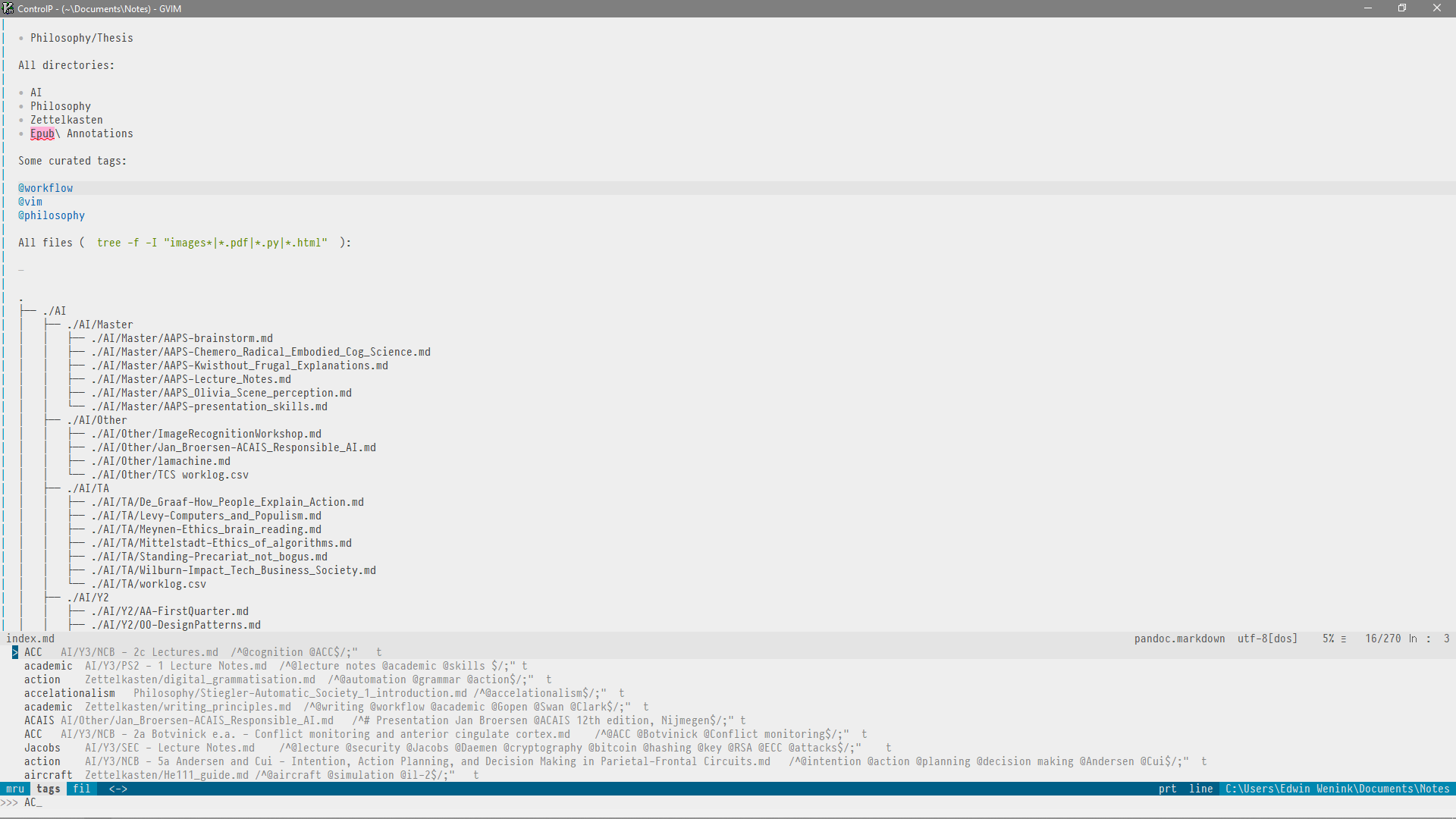
The detail shows the fuzzy nature of the tag search. I typed AC (randomly), but as you see also results like “Jacobs” and “aircraft” are displayed.

From the list of suggestions I chose “Jacobs”, which is the name of a university professor. This could be some author you are writing a paper about. As a result I’m now viewing lecture notes of a security course I followed, which discusses a range of topics. We hold our cursor on the tag “security”.
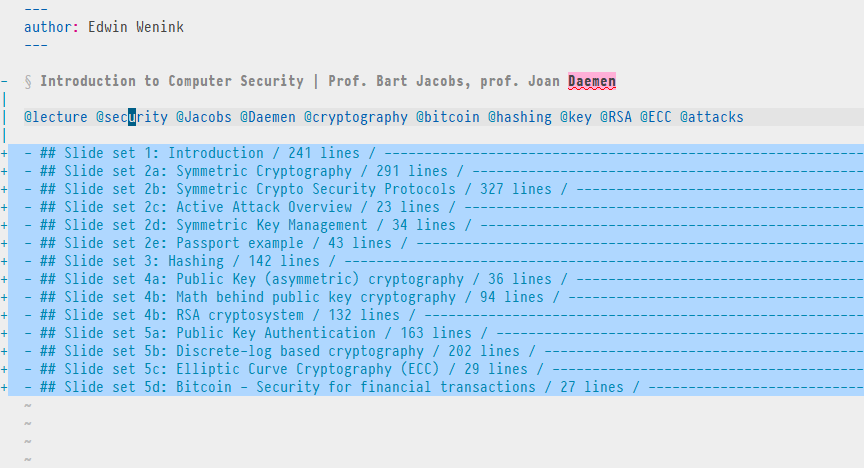
The command g] opens a list of all ambiguous tags.
We see that another file is also about security.
So let’s expand our horizon and enter its number to visit that file.

We have now reached another file with course notes on a highly related topic. It discusses security, but clearly from a more societal and philosophical perspective, i.e. the human side of computer security.
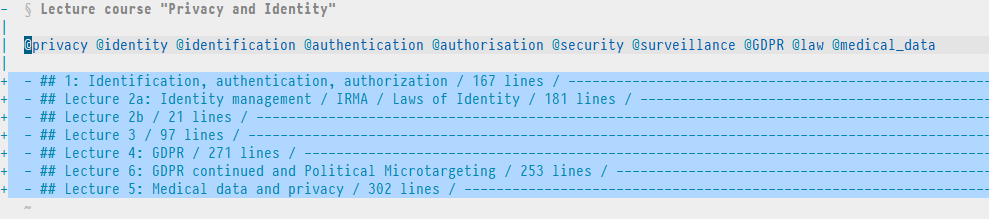
And so on. I might by now have a more specific idea to write about. If it’s a single concept I’ll make a small note in my “Zettelkasten” directory (for which I have another easy binding), where I’ll might decide to explicitly link to all the files I’ve explored. If I add the security tag there as well together with a new tag, I’ve opened up new lines of thought!
Conclusion and summary of used Vim mappings 
Like with my previous post on this topic, I’m writing about this while exploring ideas so everything is WIP. It is possible to define multiple regex rules for our custom language, so it’s easy to add more features to this tagging system. I might for example explore the usefulness of tracking explicit markdown links to other files with this system.
Let me know if you have suggestions! Feedback is welcomed.
If at some point I haven’t changed my system in a long time I’ll likely bundle together a .vimrc with everything you need.
The system so far actually heavily depends on native Vim mappings, so you do not need much at all (Keep It Simple Stupid)!
With the code below you can install CtrlP using
vim-plug.
There are two external dependencies, Universal Ctags and ripgrep which however are both cross-platform, minimalistic and do not require configuration outside of what is provided below.
Plug and play.
For now, I’ll provide a quick summary of mentioned Vim bindings and settings (and some not mentioned) as requested
here:
" Specify a directory for plugins
" - Avoid using standard Vim directory names like 'plugin'
call plug#begin('~/.vim/plugged')

" Fuzzy file finding
Plug 'kien/ctrlp.vim'

" Initialize plugin system
call plug#end()

" Ignore case in searches
set ignorecase

" Generate ctags for current working directory
nnoremap <leader>tt :silent !ctags -R . <CR>:redraw!<CR>

" Change directory to directory of current file
nnoremap <leader>cd :cd %:h<CR>

" Quickly create a new entry into the "Zettelkasten"
nnoremap <leader>z :e $NOTES_DIR/Zettelkasten/

" Go to index of notes and set working directory to my notes
nnoremap <leader>ni :e $NOTES_DIR/index.md<CR>:cd $NOTES_DIR<CR>

" 'Notes Grep' with ripgrep (see grepprg)
" -i case insensitive
" -g glob pattern
" ! to not immediately open first search result
command! -nargs=1 Ngrep :silent grep! "<args>" -i -g '*.md' $NOTES_DIR | execute ':redraw!'
nnoremap <leader>nn :Ngrep

" Open quickfix list in a right vertical split (good for Ngrep results)
command! Vlist botright vertical copen | vertical resize 50
nnoremap <leader>v : Vlist<CR>

" Make CtrlP and grep use ripgrep
if executable('rg')
    set grepprg=rg\ --color=never\ --vimgrep
    set grepformat=%f:%l:%c:%m
    let g:ctrlp_user_command = 'rg %s --files --color=never --glob ""'
    let g:ctrlp_user_caching = 0
endif

" Binding for searching tags ("search tag")
nnoremap <leader>st :CtrlPTag<CR>

" What to ignore while searching files, speeds up CtrlP
set wildignore+=*/.git/*,*/tmp/*,*.swp

" This step is probably not necessary for you
" but I'll add it here for completeness
set tags+=./tags;,tags
Building a Note-taking System with Vanilla Vim
Vim is my preferred tool for making notes and organizing my thoughts. This posts explains how we can use Vim to build a personalized note taking ecosystem of interconnected notes, only using plain text. I have some requirements for such a system. I want:
This is my guide for achieving the above. This guide assumes you make notes in Markdown, but you can adapt everything to your needs.
Motivation 
The overall goal is to start building a personal plain text ecosystem where notes are linked together in such a way that they do not only help me remember things, but also positively stimulate the process of thinking and writing. If knowledge is your business (if you are a writer, academic, or something of the like) spending some time to optimize your note taking is worth it.
Ideas about how note taking structures your thinking are worked out by the Zettelkasten (indexing cards) system that I found while writing this article. See for example a quote from this post on the benefits of extending your mind and memory through note taking:
Some note archives never move beyond a storage of thoughts and stuff you need for reference. If you connect your notes heavily by creating links between them, though, eventually your Zettelkasten will do more than fill memory gaps. Instead, it will improve the depth of your understanding.
Note taking improves the depth of your understanding for various reasons, but the least superficial is that writing down thoughts forces you to think more coherently by requiring you to make thoughts explicit.
Similar to how your ability to teach is a good indication of whether you understand the essence of something, just so is note taking a way to see if you really get the main point of for example a paper that you are reading. There is a hermeneutical principle at work here. The philosopher Gadamer for example describes how understanding requires you to go into dialogue with whatever you are trying to understand. This implies that you make your pre-understanding or prejudice explicit so that it can can be challenged in dialogue with something other, whether that is another person with a different background in teaching or a book you are reading.
So ideally notes are really an ecosystem rather than just a storage container. Just collecting stuff is not the same as understanding it. I really like the idea of “communicating” with your notes in the creative process, also worked out on the Zettelkasten blog. As you write down more notes and keep connecting them, your notes will gain complexity up to the point where, let’s say a year later, you will find surprising connections between new thoughts and old notes. In this sense your notes can really become this other party that you enter into dialogue with and a stimulant for creative thinking.
N.B. this post thus does not focus on more dynamic plain text notes, such as todo lists or agenda’s. Vim doesn’t try to emulate the functionalities of other types of software, but tries to do one thing well and then integrate with other tools dedicated to other purposes. Having said that, doing everything in plain text is cool, but you should probably have a look at Emacs Evil Mode in combination with Org mode.
Step 1: Create a single repository for your notes 
Because I want version control on my notes, it makes an awful lot of sense to organize all my notes in a single directory so that I can straightforwardly use Git. You could distribute your notes over your system and still have version control using a tool like GNU Stow, but this effort is not worth it for me. Keep It Simple.
Additionally, this way you can easily organize your notes with a meaningful folder structure that is easy to remember and efficient to navigate, assuming that you will have a folder structure at all.
Step 2: Think about a folder structure for your workflow 
After setting up your note directory, it makes sense to give some thought to how you are going to organize your notes within that directory.
There are many systems for organizing your life that rely on various forms of note taking. This is not the main focus of this post, but here are some pointers to relevant methods:
These methods generally begin with decluttering your mind by writing things down. There are plenty of online tutorials on how to implement these methods with digital note taking systems and tools, e.g. with Emacs. We will do something similar in Vim.
Personally I have not (yet?) settled for a single note taking system. In the end it’s all about finding out what works for your specific interests and use cases.
The Zettelkasten system for example urges you to only express a single idea in each note (atomicity) and rely heavily on tagging these ideas and linking them together with other notes. This implies that it is futile to try to organize everything in folders. You instead rely on searching tags and following hyperlinks between notes. Below I’ll explain how I use Vim to follow those links.
I really do try to minimize sorting files, but in my case some folder structure is meaningful to me. Having done university courses of two curricula, philosophy and artificial intelligence, it makes sense for me to at least organize long form course notes per year, e.g. under /AI/Y3/ .
If you do project-based work, where projects last for example at least half a year, it would also make sense to me to organize those notes in a folder. I have a separate directory for more free form notes.
Let’s start with the implementation in Vim.
Step 3: Create an index page 
Because we have all our notes organized in a single directory, we can make an index as an entry point into our note taking system.
In the root directory of your notes, make a index.md file.
We are going to use this index file to make links to other files and directories that we can follow using Vim’s awesome gf command.
The gf (go to file) command opens the filename, directory or url that is currently under the cursor.
This means that we can populate our index files with relative paths to files that we often use.
Only use relative paths, because this makes our note system independent of any specific system.
For example, my index file contains a “quick start” menu for useful folders:
Quick start:

- Philosophy/Thesis

All directories:

- AI
- Philosophy
- Miscellaneous
- Workflow\ &\ Skills
- Epub\ Annotations
To to one of these directories all I have to do is place my cursor somewhere on the folder name and type gf to open the file in a new window (vertical split), or gF to open it in the same window, or <C-w>f to open the file in a horizontal split.
By the way, run :help key-codes for an explanation of Vim’s notation for key sequences.
Paths with spaces in them can complicate matters.
If you escape the spaces the gf command works just fine, the other commands not so much (in terminal Vim at least).
What works in all cases is visually selecting the path before running gf.
Next to a quick start menu, I thought it was cool to include a full tree of all notes.
By default the tree command only shows the file names at nodes, but for gf to work we need valid paths.
Because all notes share the same root directory, we can save space by using valid relative paths.
On a Linux system, you can achieve this as such:
tree -f -I "images*|*.pdf|*.py|*.html"
The -f option displays the full paths relative to the root of the notes directory, which is necessary for gf.
The -I option excludes everything matching the given pattern.
I have some stray pdf, python and html files in my notes directory, so I make sure to exclude them.
I also have one directory purely for images I reference in my notes.
All notes have the markdown extension (and an occasional Emacs .org file).
To insert the output of the command directly in our text buffer, prepend the command with the read command or its shorthand r, or even shorter (but this overrides the current line), with . (a dot).
So you run:
:.!tree -f -I "images*|*.pdf|*.py|*.html"
The resulting tree looks something like this:
.
├── ./AI
│   ├── ./AI/Master
│   │   ├── ./AI/Master/AAPS-brainstorm.md
│   │   ├── ./AI/Master/AAPS-Chemero_Radical_Embodied_Cog_Science.md
│   │   ├── ./AI/Master/AAPS-Kwisthout_Frugal_Explanations.md
│   │   ├── ./AI/Master/AAPS-Lecture_Notes.md
│   │   ├── ./AI/Master/AAPS-Olivia_Scene_perception.md
│   │   └── ./AI/Master/AAPS-presentation_skills.md
│   ├── ./AI/Other
│   │   ├── ./AI/Other/ImageRecognitionWorkshop.md
│   │   ├── ./AI/Other/Jan_Broersen-ACAIS_Responsible_AI.md
│   │   └── ./AI/Other/lamachine.md
│   ├── ./AI/TA
│   │   ├── ./AI/TA/De_Graaf-How_People_Explain_Action.md
│   │   ├── ./AI/TA/Levy-Computers_and_Populism.md
│   │   ├── ./AI/TA/Meynen-Ethics_brain_reading.md
│   │   ├── ./AI/TA/Mittelstadt-Ethics_of_algorithms.md

. . . . . . . . . . .. . . . .  etc.

│       ├── ./AI/Y3/RI-Logic_Block.md
│       ├── ./AI/Y3/RI-Multi_Agent_Systems.md
│       └── ./AI/Y3/SEC-Lecture_Notes.md
│
└── ./Zettelkasten
    ├── ./Zettelkasten/BASB.org
    ├── ./Zettelkasten/environment.md
    ├── ./Zettelkasten/memory_techniques.md
    └── ./Zettelkasten/writing_principles.md
You can use this full tree for navigating to any note using Vim’s gf command.
To quickly jump to a file name in the tree, just use Vim’s search / in the index file.
UPDATE 14/4/2020: I almost immediately moved away from using the tree. It just looked cool, but it quickly gets unmanageable. Relying on directory structure forces you to categorize notes rather than relying on search tools and direct interlinking. I’ve switched to a “Zettelkasten” approach. However, the idea of an index page is alive and kicking! You can always insert links to heavily used project notes. I currently use a page with all my tags as my index page (for tags, see the next post).
The last thing we need to do is make a fast way to access the index file from anywhere. We can make a mapping to 1) open the index file and 2) change the Vim working directory to our notes directory, so that we can use our relative paths.
One way to do that is to add the following mapping to your .vimrc:
" Go to index of notes
nnoremap <leader>ww :e $NOTES_DIR/index.md<CR>cd $NOTES_DIR
UPDATE 19/12/2019: I now let all note related mappings start with <leader>n.
This command is now mapped as <leader>ni for “note index.”
This command also has a small mistake. This is the corrected version:
" Go to index of notes and set working directory to my notes
nnoremap <leader>ni :e $NOTES_DIR/index.md<CR>:cd $NOTES_DIR<CR>
N.B. the default leader key is the backslash \.
<CR> is a carriage return, or an “Enter” in common tongue.
We need <CR> to also execute the command, but it is also a cheeky way to chain two commands together on a single line.
$NOTES_DIR is a bash variable that I set in my ~/.bashrc:
export NOTES_DIR=/home/edwin/Documents/Notes
You can of course hardcore that path into your .vimrc, but I preferred to use the bash variable because then I don’t have to change my .vimrc in case I migrate my notes directory for some reason.
On Windows I do hardcore the path though.
Vim allows you to ignore the Windows convention of using backslashes in paths, so you can use a backslash to escape whitespaces as usual.
For example, my remap on Windows looks like this:
nnoremap <Leader>ww :e C:/Users/Edwin\ Wenink/Documents/Notes/index.md<cr>
Whatever we are doing in Vim, our notes are now always reachable within a second.
Step 4: Methods for finding notes 
We can now quickly find notes by jumping to our index file, using Vim’s search operator / and then running gf on the search result.
A more rhizomatic way of navigation is to create links within notes to other related notes and follow them with gf.
This is our method for building up an ecosystem of interconnected notes.
Another option is to use the default find function, which offers you autocomplete on paths.
This is a feasible approach because all our notes are organized in a single directory with a meaningful structure.
Alternatively, just use a fuzzy file finder to quickly find files based on partial matches.
A well-known option is fzf.
I opted for the Ctrl-P fuzzy finder because making that run on Windows as well was easy.
You can make Ctrl-P faster by letting it use the blazingly fast tool ripgrep, by adding the following to your .vimrc (after installing ripgrep of course):
" Make Ctrlp use ripgrep
if executable('rg')
    let g:ctrlp_user_command = 'rg %s --files --color=never --glob ""'
    let g:ctrlp_user_caching = 0
endif
Another good argument for using ripgrep is that it runs both on Linux and Windows and thus fits my cross-platform requirement.
Do note however that ripgrep is an external command line tool and does not ship with Vim, so you need to install it yourself.
Have a look at the
project page for clear installation instructions.
Something I have not done yet, is design an effective plain-text tagging system UPDATE 19/12/2019: see this post. This blog adds tags behind all files in the index, as a quick hack. This doesn’t fit with the above mentioned approach of automatically generating the navigation tree, as that would replace the tags. I also think a plain-text tagging system is ideally decentralized, i.e. tags are stored in the notes themselves. This is more robust but also tricker to implement efficiently.
Step 5: Navigating between opened files in your buffer 
We covered how to find a file you want to read or edit. But how do you efficiently jump back and forth between files that you opened?
Using search functions to find a file each time I need it is superfluous. When I’m writing a paper I want to have various related notes open at the same time and ready for inspection. But you shouldn’t have multiple windows of tabs open for more than two files, first of all because they fill up your precious screen space and secondly because cycling through them is slow.
You should use buffers and the jumplist markers Vim sets for you.
Everytime you open a new file, Vim will open that file in a buffer.
It is important to realize that a buffer does not need to have a window, i.e. it is not necessarily visible.
You can see the complete list of open buffers using the ls command, which is familiar to all Unix users.
Alternative you can type out buffers.
You will see that each buffer is numbered.
You can open a buffer quickly either by referring to its number, like so to open the second buffer :b2.
A very nice feature is that the buffer command can expand partial matches with filenames opened in a buffer.
If you for example have your .vimrc opened in a buffer, you can type b rc<TAB> to expand rc to the full path to your .vimrc.
You can also cycle through buffers as such (with alternative mappings from vimunimpaired):
And you can delete buffers from the buffer list with :bd
The command without arguments deletes the current buffer.
I have to admit that I only realized I wasn’t using Vim’s buffers properly after making a field trip to Emacs. Sometimes it is good to explore a different workflow to re-evaluate your habits, and integrate improvements. What was also more prominent in Emacs were functions to quickly jump back and forth between the buffers you visited lasts. I wish I knew that Vim could do this as well from the moment I started using it.
Vim uses movements to navigate through a text.
Before each movement Vim sets a marker of your current location and stores it in the jumplist.
These markers also work across files.
This means that if I open a new file in a buffer for example after using gf, then I can quickly jump back to the previous file with C-o.
If you perform movements in the meanwhile, you’ll have to cycle back through those movements as well.
You can also directly alternate between the current file and the last opened file with C-6.
Somehow introductions to Vim rarely mention these commands, but they really were eye-openers for me.
I do not leave Vim anymore for file navigation, and especially on Windows this makes the whole experience much closer to using the command line.
Proper buffer navigation satisfies my wish to do everything from within Vim. Without buffers, you’ll find yourself opening new Vim instances all the time, which requires your window manager to switch between those instances.
Step 6: Search contents of your notes 
Additionally, in the case tag based search would not be enough (true in my case, because I did not implement it), we fall back on searching the contents of our notes.
The most straightforward tool to do this is grep, available on every Unix-like system.
However, we wanted our solution to be cross-platform and Windows does not have grep.
A first good approach is to use Vim’s native grep called… vimgrep.
Because this doesn’t require an external tool, any system using Vim can use this approach.
There is an issue though.
vimgrep and lvimgrep (a vimgrep that populates the locallist instead of the cross-file quicklist) are slooooooow.
Luckily, Vim also has a regular grep command that you can configure to use any searching tool.
We just need that tool to be cross-platform.
We already used ripgrep for Ctrl-P, so let’s use it for Vim’s grep command as well.
" Make :grep use ripgrep
if executable('rg')
    set grepprg=rg\ --color=never\ --vimgrep
endif
Merge the new line with the code block for the Ctrl-P fuzzy finder we saw above.
The --vimgrep option emulates vimgrep behavior, i.e. it now returns each match, irregardless whether it’s in the same file or sentence as another hit, as a single result.
The next step is to write a command with a handy shortcut to search our notes and only our notes.
I was inspired by a note searching function from
this video of a doctor using Vim to make notes.
He uses the slow vimgrep.
This is his function:
command! -nargs=1 Ngrep vimgrep "<args>" $NOTES_DIR/**/*.txt
nnoremap <leader>[ :Ngrep
I introduced four changes.
We do not use vimgrep anymore, but Vim’s grep command which we redirected to rg.
But the syntax of ripgrep is different.
It does not take Unix style wildcards, but requires you to explicitly define a glob for the search pattern using -g.
I also changed the mapping slightly, using the “n” for “notes”.
Instead of .txt files, we only search through .md files.
Adjust the glob pattern if you want to include more.
Remember that the <leader> is a backslash by default.
" My own version, only searches markdown as well using ripgrep
" Thus depends on grepprg being set to rg
command! -nargs=1 Ngrep grep "<args>" -g "*.md" $NOTES_DIR
nnoremap <leader>nn :Ngrep
So if we press \nn in Vim, we can immediately type our search term and get all matches in our note directory.
The results of the search populate what is called the quickfix list in Vim.
This is a list you can access from any context within Vim (as opposed to the locallist which is bound to the context of the current file).
You can use the following commands to navigate the items in the quickfix list:
The vim-unimpaired plugin provides default mappings for the quickfix list:
For who is into more advanced stuff, you can run commands on each item in the quicklist with cdo {cmd}, which runs cmd on every list item.
I was also inspired by the Vimming doctor linked above in the creation of a navigation pane for browsing the search results in the quickfix list.
The following function and mapping allows you to open a sidebar with the results from our custom “note grep” with \v:
command! Vlist botright vertical copen | vertical resize 50
nnoremap <leader>v :Vlist<CR>
Clicking on a option moves to exact line in file of the search hit.
Sometimes I leave “TODO” notes in notes. This is how the custom sidebar looks after searching my notes for “TODO”:
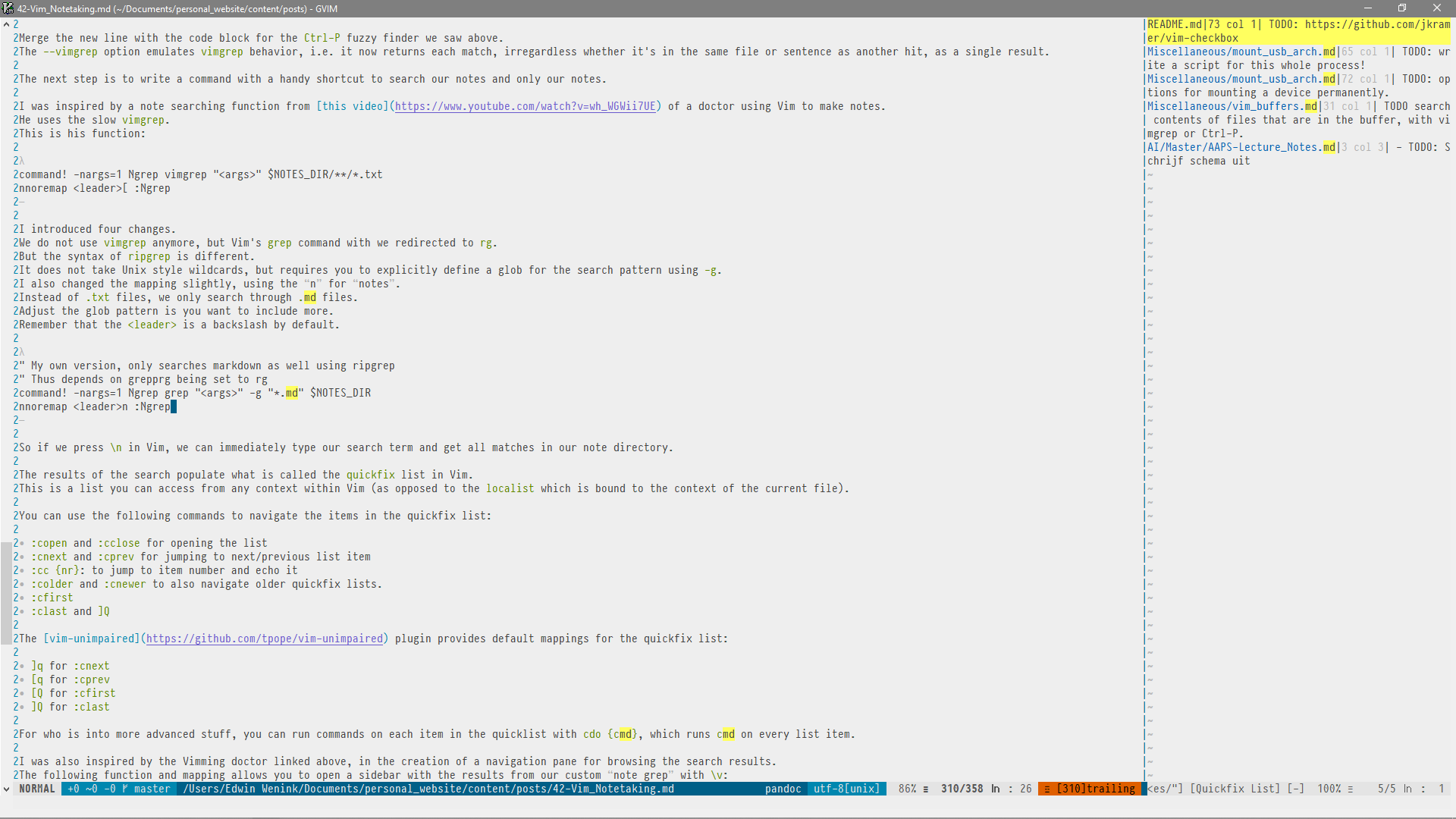
The sidebar shows the file a match was found in and a preview of the match itself.
You can adjust the size of the bar with :vert resize {size}.
Conclusion and ideas for the future 
The system described above only uses vanilla Vim functionality without the need for plugins.
I also deliberately do not use additional plugins for previewing my notes, because I write in Markdown and Markdown is designed to be readable in plain text. Instead I advice to explore the various Markdown plugins out there, for syntax highlighting and folding. I can really recommend vim-pandoc and the corresponding syntax plugin.
I’m interested in getting tips from you, especially about a potential implementation for “tags”.
This is my current TODO list:
If I work any of these out you can expect a new blogpost about that.
Links for inspiration 
On function creep, privacy and encryption
Some technologies have the interesting property that they take on roles that were never intended or foreseen by their designers.
Johannes Gutenberg introduced the printing press in Europe and used his technique to efficiently produce bibles, spread the word of God, and support the authority of the Catholic Church. Instead, the introduction of efficient printing techniques in Europe “introduced the era of mass communication which permanently altered the structure of society. The relatively unrestricted circulation of information—including revolutionary ideas—transcended borders, captured the masses in the Reformation and threatened the power of political and religious authorities; the sharp increase in literacy broke the monopoly of the literate elite on education and learning and bolstered the emerging middle class” ( Wikipedia).
The technology of mechanical printing changed European civilization in spite of and beyond the intentions of its designer. And in this case, we can applaud this as something beautiful: technology has the power to redefine the boundaries of thought and action and transform our social realities for the better. This transformative power is in fact something that is sought after nowadays. Take for example the Internet of Things movement that entertains the ideal of connected technologies embedded in our homes and ultimately our cities, to the point where they are ubiquitous and shape our life world. Despite this being a dream for some, others see in this the voluntary and naive submission to a surveillance society.
Function creep and security 
In other cases, the application of a technology outside of its intended context is simply inappropriate. When it comes to security, Bruce Schneier writes that “far too often we build security for one purpose, only to find it being used for another purpose – one it wasn’t suited for in the first place.” The correct functioning of a technology is not independent of the values of the social context in which they are embedded. Schneier mentions how US driver’s licences increasingly transformed from being a simple credential for showing that you know how to drive a car, to something you could use to prove you are old enough for buying liquor. With this changing social context, it suddenly became valuable to create fake driver’s licenses, and this bumped up its security needs. Another one: “Security systems that are good enough to protect cheap commodities from being stolen are suddenly ineffective once the price of those commodities rises high enough.” Security measures are always taken relative to how much time and money you expect an attacker to put in. When the value of the thing you secure goes up, your security measure goes from being appropriate to being a laughing stock.
The use of a technological design beyond its intended purpose is called function creep. This is not only a potential issue for security, but also for privacy if the function creep involves personal data. The linking of personal data from various sources can lead to a quite accurate personal profile that may lead to some convenient applications, such as a personalized search experience, but also to questionable practices such as political microtargeting, which may disrupt the democratic political process. The issue here is not just the particular usage of personal data that may be desirable or not, but that often the used data is originally collected for other purposes. The public outrage about the Cambridge Analytica-scandal is understandable because personal data collected in the context of a social network was used in another context for the Trump campaign. Those people may have consented to sharing their data with Facebook, but would likely not have consented to their data being used for a political campaign.
Function creep and contextual integrity 
Why function creep is such a threat to privacy is best explained by Helen Nissenbaum’s concept of contextual integrity. When we visit a doctor we consent to disclosing very personal information so that the doctor can adequately help us (we are obliged to give the doctor complete and accurate information, actually). If you agree that this is not a privacy breach, then you should also agree that privacy is more than straight up secrecy or confidentiality. But consent in the context of the examination room does not mean that the doctor can share this information outside of this well-defined context of medical practice. You do however likely accept that the doctor may need to consult with a specialist, and consequently you give away a bit of control over your data. Privacy is thus more than confidentiality or being in full control of your data at all times. The relative importance of all these aspects of privacy are heavily context dependent, and can therefore not simply be translated from one context into another. So neither can consent.
For the course where I work as a teaching assistant, students were asked to give an example of function creep, some positive and negative implications and how to resolve the negative implications. Reading and evaluating the resulting small essays were proof of the importance of teaching, as they forced my to formulate my own thoughts on the subject. I noticed one trend in particular, namely that many students proposed encryption as a solution to the privacy issues concerning function creep.
Is encryption a solution? 
Some students found a blog of Michael Zimmer where he gives an example of privacy invasion due to function creep. He mentions how a dean of a Washington high school thought he saw two girls kissing. A quick check with the footage of the surveillance camera confirmed this, and the dean consequently informed the parents of one of the girls about this. The girl got pulled out of school. The presence of a surveillance camera is acceptable for ensuring public safety, but was instead used to enforce social norms: textbook function creep (and perhaps the dean was an actual creep, who knows).
In this scenario the inappropriate function creep is caused by human interference. One proposed solution was thus the design of an autonomous AI system that encodes the used data and only extracted features relevant for its goal: e.g. ensuring public safety. Another proposal was to encrypt all collected data, so that explicit permission to use the data is always needed. Let’s leave the technical feasibility of these proposals aside for now.
These answers make sense given that they seem to assume that function creep is due to explicit human involvement (and specifically, with less than pure intentions). Encrypting data is indeed very important for protecting sensitive data against people with bad intentions that try to steal and misuse that data. But I would argue that function creep does not depend on this explicit human interference.
Good encryption ensures data protection, which is preceded by the moment of data collection. Compare how the GDPR battles function creep: before collecting data you have to specify exactly for what you intend to use it, why your need for that data is legitimate, and how long you need it. Function creep is thus already relevant at the stage of collecting data and specifying the purpose of data collection. This process of data collection can be fully automated without humans necessarily trying to make inferences on particular individuals. But the critical point is that no data is used that was legitimately recorded for another purpose, for which encryption is maybe a necessary condition but not a sufficient one. Imagine an automated AI system recording and linking data haphazardly without much oversight on the purpose of data collection. Following the first proposed solution, the AI would encrypt the collected data, protecting it against humans with malicious intent. But I would argue that in this scenario things did not get better but perhaps rather worse. The system extracts features based on data that may be inappropriately gathered and linked (function creep), and in this case encryption would even further limit the explainability of decisions made or supported by such a system.
Encryption also raises the question: Encrypted by who? Who is in control of the data? Let’s say a law obliges me to encrypt the data I gathered. Since I have the key to decrypt the data, I can still use the data when I need it, potentially for another purpose than the one I stated when I collected the data. In other words, misuse by the data controller is not necessarily counteracted by the technical measure of encryption alone. Encryption protects against misuse by other actors.
I would thus say that even though encryption is extremely important for data protection, it does not in itself prevent function creep. However, that does not mean that encryption cannot help battling function creep. The app IRMA, developed by the Privacy by Design foundation offers attribute-based authentication with zero-knowledge proofs in a way that is sensitive to contextual integrity. (They have very strong ties to Radboud University, but I am in no way affiliated.) I can for example load the attribute that I’m an inhabitant of Nijmegen from the local municipality into IRMA. If I need to authenticate to an application that needs to know where I live, I can prove that I indeed own this attribute without disclosing any other attributes, such as my age. Likewise, I can prove that I’m older than 18 to another application, without having to disclose my exact age (zero-knowledge proof) or disclose where I live (irrelevant attribute). The context sensitivity thus lies therein that the user remains in control of which attributes to disclose in each particular context and only in that context, without having to give away more information.
Such use of encryption addresses the two main points I thought the above answers on encryption missed. Firstly, IRMA is sensitive to contextual integrity because it uses cryptography to ensure only relevant attributes are used, for which the purpose of original collection matches the legitimate use case of the app. Secondly, this use of encryption is effective against function creep only by giving the user control over identity management and the authentication process in a decentralized manner.
This does not solve issues with surveillance of course, but was the first thing that came to my mind when thinking about a way in which encryption might help to battle privacy-invading function creep. Privacy by design is a good example of how encryption can be used effectively against function creep by embedding the relevant ethical and societal values in a responsible design practice.
Pick a random background on each boot (Linux)
LightDM is a display manager that requires a “greeter” that prompts a user for credentials and lets a user log in to a session. On my Arch system I currently use the LightDM GTK greeter. You can specify a background of your choice for the greeter if you think a black screen is a bit too boring. Some people also think that just having one background is too boring. This quick write-up shows how you can pick a different background each time you boot up your system. If you do not use LightDM, you can easily adapt the instructions in this post to your needs. I will discuss two different scenarios.
Scenario 1: Static Greeter background, random thereafter 
It could be the case that you want your LightDM greeter background to be static because you have a background that really suits the greeter, while at the same time you would like a random background after logging in.
To achieve this, firstly specify the static background in the configuration file of your greeter at /etc/lightdm/lightdm-gtk-greeter.conf.
My configuration file looks like this:
[greeter]
theme-name = Adwaita-dark
icon-theme-name = HighContrast
position = 16%,center 40%,center
screensaver-timeout = 50
background = /usr/share/pixmaps/background.jpg
default-user-image = /usr/share/pixmaps/xterm-color_48x48.xpm
user-background = true
As you can see, you can set the background for the greeter here.
There is a small catch: it is easiest if you place your background in /usr/share/pixmaps, because that location is readable by LightDM.
This way you do not have to worry about permissions.
Secondly, you can use feh to generate a random background from a folder of backgrounds.
In this scenario, the order of things is important.
We use the LightDM greeter settings to set the background of the greeter, but then we want to change the background before starting up our window manager of choice (i3 or dwm in my case).
We can achieve this by calling feh from ~/.xprofile, because LightDM sources ~/.xprofile before starting the window manager.
Calling feh from ~/.xinitrc did not work for me in combination with LightDM, because then LightDM overwrites the background you set at the beginning of the X session.
So simply make ~/.xprofile if you do not have it yet, and enter the command feh --randomize --bg-fill ~/Pictures/backgrounds/*.
This command assumes your backgrounds are stored in ~/Pictures/backgrounds/, so adjust this as needed.
Notice that that command creates a file called ~/.fehbg with your background settings.
If you do not use LightDM at all, you can use this method all the same to set a random background for your window manager, skipping the first step.
Scenario 2: random LightDM background 
If you want the background of both the LightDM greeter and your window manager to be chosen randomly at startup, we can write a script to replace background.jpg in /usr/share/pixmaps/ with a random background.
Alternatively, you could write a script to directly write to the greeter configuration file, but my approach is easier and has low risk, because you do not adjust any configuration file.
If you run ls -l /usr/share/pixmaps/ | grep background.jpg, you’ll see that the background file is owned by the root user by default.
If you want to run a script to change the background file as a regular user, you need to make sure to give write access to the background file.
One way to do that is by making your user the owner of the background file as such:
sudo chown -R edwin:users /usr/share/pixmaps/background.jpg
Where edwin is my username (run whoami to retrieve it), and users is the group name of regular users.
After doing this, running the ls command from above gives the following output:
-rw-r--r-- 1 edwin users 819492 Apr 3 2018 background.jpg
Now we can write a script to pick a random background picture from the directory where we keep our backgrounds, and replace background.jpg with that new background.
I wrote a simple bash script for this:
#!/bin/bash

cd /usr/share/pixmaps

background_home=/home/edwin/Pictures/backgrounds

# Shuffle backgrounds and pick one
background=$(ls $background_home | shuf -n 1)

# Replace current LightDM greeter background
cp $background_home/$background background.jpg
Don’t forget to run chmod +x on your script to make it executable.
Now all we need to do is call this script at the right place and time.
We simply call the script from ~/.xprofile like we did before.
Replace the line we added for scenario 1 with a simple call to your script.
Voila!
Each time you boot up your system you’ll be greeted by a new background.
The background sticks around when you start up your window manager, unless you explicitly override it, like we did in scenario 1 with feh.
Scenario 3: Change background at interval 
If you want to keep changing your background picture with some time interval after you have logged in, you could adjust the bash script above to include a loop that updates the background for example each hour using feh.
The adjusted bash script could look like this:
#!/bin/bash

cd /usr/share/pixmaps

background_home=/home/edwin/Pictures/backgrounds

# Shuffle backgrounds and pick one
background=$(ls $background_home | shuf -n 1)

# Replace current LightDM greeter background
cp $background_home/$background background.jpg

sleep 1h
# Use feh to ad hoc set a new random background at a given time interval
while :
do
 feh --randomize --bg-fill /home/edwin/Pictures/backgrounds/*
 sleep 1h
done
Because we now introduced an infinite loop, we should really make sure that the bash process can run in the background, otherwise your system will hang and never boot into your window manager!
This is not hard though.
In your ~/.xprofile, just make sure to disown the bash call, for example as such:
random_background.sh & disown
Now you will have a fresh background from your collection each hour!
If you manage to hang your system anyways, just open another TTY and log in there to fix the problem.
Because you do not automatically start the X server at other TTYs, you can adjust your script and halt the blocking process (e.g. using htop).